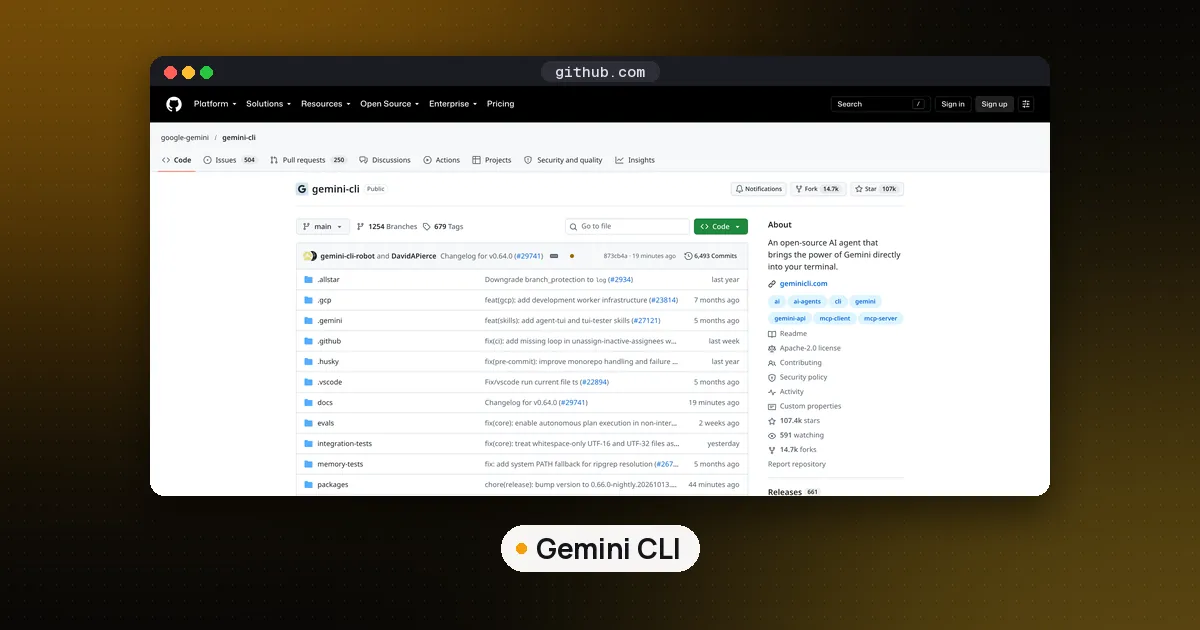
To use Gemini CLI in terminal, install it with npm install -g @google/gemini-cli (or brew install gemini-cli), set a paid Gemini API key or your organization's Google Cloud project, then run gemini inside your project folder and type what you want done in plain English. From there you pull files into the prompt with @, run shell commands with !, and control the session with slash commands such as /help, /init and /mcp. The one catch in 2026: personal Google sign in for free, Google AI Pro and Ultra accounts stopped working on June 18, 2026, so pick an access method that is still served before you start.
What's new (October 28, 2026): Do not mix this up with a new, separate tool. On October 27 Google released the Gemini API CLI (gemini-api) in beta, which its release notes describe as a stateless command line client with no dependencies, made for AI coding agents, scripts and CI pipelines. It uses the Interactions API to generate text and media, analyze files and run Gemini managed agents, while Gemini CLI (gemini) is the interactive coding agent this guide covers. Setup steps are in Google's Gemini API CLI guide. Also from the same notes: since October 26, new paid tier projects using generateContent store requests by default (store=true); set store=false per request or turn off logging in the Logs and Datasets settings if you do not want that.
This walkthrough covers the terminal workflow step by step, as documented in the official Gemini CLI repository and its docs on October 14, 2026, when the latest stable release was v0.64.0 (published October 13). If you are still choosing a terminal agent, read our Claude Code vs Codex vs Gemini CLI comparison first. This guide assumes you have already picked Gemini CLI.
Before you start: who can still use Gemini CLI
Google announced on May 19, 2026 that Gemini CLI would stop serving requests for Google AI Pro and Ultra subscribers and for people using it free through Gemini Code Assist for individuals, starting June 18, 2026. The Gemini CLI team confirmed the cutoff on June 18 and said Code Assist license holders and API key users were unaffected.
That leaves three working routes:
- A paid Gemini API key from Google AI Studio. Google's announcement says the CLI stays accessible through paid Gemini API keys. It doesn't spell out whether an unpaid key still works, so plan on a billed key.
- Gemini Enterprise Agent Platform (formerly Vertex AI) credentials in a Google Cloud project.
- A Gemini Code Assist Standard or Enterprise license from your company, signed in with your work Google account.
Be aware that parts of the official README and docs still describe the old free tier with a personal Google account. The announcement and the June 18 notice are the newer sources. If you used Gemini CLI on a personal plan, Google points you to Antigravity CLI instead (covered near the end).
Step 1: Install Gemini CLI
The docs list Node.js 20 or newer as the runtime, and recommend macOS 15+, Windows 11 24H2+ or Ubuntu 20.04+, with at least 4 GB of RAM for casual use and 16 GB for long sessions on large codebases. Pick one install method:
# npm (all platforms)
npm install -g @google/gemini-cli

# Homebrew (macOS and Linux)
brew install gemini-cli

# Try it once without installing
npx @google/gemini-cli
MacPorts (sudo port install gemini-cli) and an Anaconda environment are also documented for restricted machines. Gemini CLI also comes preinstalled in Google Cloud Shell.
Releases follow a weekly rhythm: a new stable build every Tuesday, a preview channel (npm install -g @google/gemini-cli@preview) and nightly builds. Stay on stable unless you are testing a specific fix.
Step 2: Authenticate with a method that still works
Run gemini once. It asks how you want to authenticate for this project.
Paid Gemini API key. Create a key in Google AI Studio, export it, start the CLI and choose Use Gemini API key:
export GEMINI_API_KEY="YOUR_KEY"
gemini
On Windows PowerShell the equivalent is $env:GEMINI_API_KEY="YOUR_KEY". Add the export line to your shell profile so you don't retype it, and treat the key like a password.
Google Cloud (Enterprise Agent Platform / Vertex AI). Set GOOGLE_CLOUD_PROJECT to a project with the API enabled and GOOGLE_CLOUD_LOCATION to your region, then authenticate with gcloud application default credentials, a service account key, or a Cloud API key with GOOGLE_GENAI_USE_VERTEXAI=true.
Code Assist Standard or Enterprise license. Set GOOGLE_CLOUD_PROJECT to your organization's project, run gemini, and choose Sign in with Google with your work account. You can switch methods later with /auth.
Step 3: Run your first task
Always start Gemini CLI from the root of the project you want it to work on, because that folder becomes its workspace:
cd ~/code/my-app
gemini
Then just describe the job: "Explain how authentication works in this repo" or "Write unit tests for the date helpers and run them". Gemini CLI reads files, proposes edits and asks before it writes a file or runs a command. Each request shows an approval prompt, and choosing Allow once approves only that action.
A good first session looks like this:
- Ask a read only question about the codebase to see how it explores files.
- Run
/initto generate aGEMINI.mdfile with project notes (more on that below). - Give it one small, testable change, and review each diff before you approve it.
- Check usage with
/stats model, which shows token counts and quota information for the session.
To give the agent more than one folder, start it with gemini --include-directories ../lib,../docs. To pin a model instead of the default automatic selection, use -m followed by a model name. To pick up where you left off, run gemini --resume latest.
The three kinds of input: @, ! and /
Most of what makes Gemini CLI fast in a terminal comes from three prefixes.
@ adds files to your prompt. @src/auth.ts explain the token refresh logic inserts that file's contents into your message. Pointing at a folder, as in @src/, hands the agent the directory so it can look inside with its tools. Git ignored paths such as node_modules and .env are skipped by default.
! runs shell commands. !git status runs the command and shows the output without leaving the session. Typing ! on its own toggles shell mode, where everything you type goes straight to your shell until you toggle it off. These commands run with your own permissions, so they are not sandboxed.
/ controls the session. The slash commands you'll use most:
| Command | What it does |
|---|---|
/help | Lists commands and shortcuts |
/init | Writes a starter GEMINI.md for the current project |
/memory show | Shows the combined instructions loaded from GEMINI.md files |
/mcp | Lists connected MCP servers and their tools |
/model | Changes the model for the session |
/plan | Switches to read only Plan Mode |
/resume | Browses auto saved sessions to continue one |
/compress | Replaces the chat history with a summary to save tokens |
/rewind | Steps back through the conversation and can revert file changes |
/quit | Exits |
/rewind is also bound to pressing Escape twice, which is the quickest undo when an edit goes wrong. /chat share exports the current conversation to a Markdown or JSON file.
Give it project instructions with GEMINI.md
Gemini CLI loads instructions from GEMINI.md files: a global one at ~/.gemini/GEMINI.md, one at your project root and its parent folders, and others in subdirectories. Put the things you'd tell a new teammate there: how to run tests, the code style, folders it should never touch.
If your repository already has an AGENTS.md for other agents, you don't need a second file. Set context.fileName in your settings to a list such as AGENTS.md and GEMINI.md, and the CLI reads both. Our AGENTS.md guide explains how to write one file that Claude Code, Codex and Gemini CLI all respect.
Choose how much it can do without asking
By default Gemini CLI asks before every edit and command. The --approval-mode flag changes that:
defaultasks for each action.auto_editapproves file edits automatically but still asks before shell commands.plankeeps the agent read only while it drafts a plan.yoloapproves everything. The older--yoloflag is deprecated in favor of--approval-mode=yolo.
Only use auto_edit or yolo in a clean Git branch, ideally with --sandbox (-s), which runs tools in an isolated environment. For a fuller look at isolating agents, see our guide to agent sandboxes.
Connect MCP servers from the terminal
Gemini CLI speaks the Model Context Protocol, so you can give it new tools without editing JSON by hand:
# Local stdio server
gemini mcp add github npx -y @modelcontextprotocol/server-github

# Remote server over streamable HTTP
gemini mcp add --transport http my-api https://example.com/mcp/
Servers are saved to the project's settings by default. Add --scope user to make one available in every project, and --include-tools to expose only the tools you need. Inside a session, /mcp lists what's connected and /mcp auth <name> starts sign in for servers that use OAuth. To write your own server, follow our MCP server in Python tutorial.
Script it: headless mode for automation
Pass a prompt with -p and Gemini CLI runs once without the interactive interface, which makes it usable in scripts, cron jobs and CI:
gemini -p "Summarize the changes in the last 10 commits" --output-format jsonThe json format returns one object with the response, token stats and any error. stream-json emits newline delimited events (messages, tool calls, tool results and a final result) for long jobs. Exit codes are documented: 0 for success, 1 for an API or general error, 42 for bad input, and 53 when the turn limit is exceeded. Headless runs need an API key or Cloud credentials rather than browser sign in. Google also publishes a GitHub Action for running Gemini CLI in pull request workflows.
When to move to Antigravity CLI instead
If your access came from a personal Google account, Gemini CLI no longer serves you, and Google's recommended path is Antigravity CLI. It installs with a script from Google (curl -fsSL https://antigravity.google/cli/install.sh | bash on macOS and Linux), starts with the agy command, and, according to the Gemini CLI team, imports your skills, MCP servers and GEMINI.md files on install. Google says there isn't full feature parity yet, so check that the features you rely on are there before you switch.
If you'd rather keep a terminal agent that isn't tied to one model vendor's plan changes, compare Claude Code, OpenAI Codex and the open source picks in our best open source coding agents roundup.
FAQ
How do I use Gemini CLI on Mac?
Install it with brew install gemini-cli (or npm with Node.js 20 or newer), open Terminal, cd into your project and run gemini. Export a paid GEMINI_API_KEY in your ~/.zshrc so it's set in every new window, or set GOOGLE_CLOUD_PROJECT if you sign in with a work Code Assist license.
How do I use Gemini CLI in VS Code?
Run gemini in VS Code's integrated terminal. It detects the editor and offers to install the Gemini CLI Companion extension, or you can run /ide install yourself. The companion shares your open files, cursor position and selection with the CLI and shows proposed changes in VS Code's diff viewer. If you mainly want inline completions in the editor, GitHub Copilot is the more natural fit.
Can Gemini CLI read AGENTS.md instead of GEMINI.md?
Yes. Set context.fileName in settings.json to a list that includes AGENTS.md, and Gemini CLI loads it alongside, or instead of, GEMINI.md. That lets one instruction file serve several coding agents in the same repository.
How do I stop Gemini CLI asking permission for every edit?
Start it with --approval-mode=auto_edit to auto approve file edits while still confirming shell commands. --approval-mode=yolo approves everything, which is only sensible in a sandbox or a throwaway branch.
Is Gemini CLI still worth learning in 2026?
It is if you have a paid Gemini API key, Google Cloud credentials or a company Code Assist license, since Google says it keeps supporting those users with new models. It is open source under Apache 2.0, so the code stays available either way. Individuals on personal plans should look at Antigravity CLI or another terminal agent.